
DmPlay Login Guide
Understand the DmPlay login screen, phone or email sign-in fields, password reminders and safe steps for common access issues.
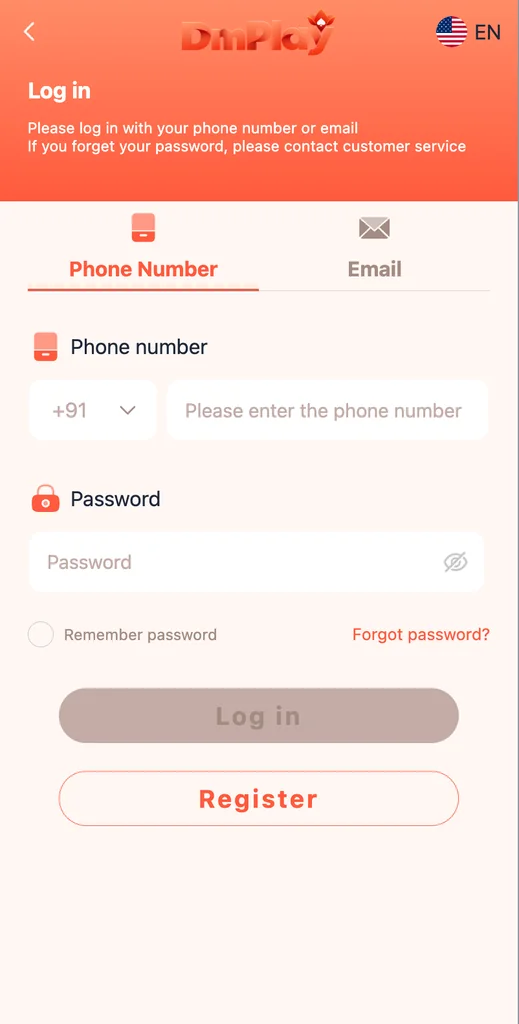
The supplied login reference shows separate phone-number and email tabs, a password field, a remember-password option, a forgot-password link and a registration button. This guide explains those visible controls and the precautions to take when signing in.
For more general DmPlay Login and DM Play information, visit the main DmPlay guide on the Home Page.
Check the Website Before Signing In
Open the service address from a source you have already verified. Check the spelling of the domain and the browser address bar before entering a phone number, email or password. Avoid login links sent in unexpected messages, comments or promotional groups.
A copied logo or matching page design does not prove that a sign-in page is genuine. If the address looks unfamiliar or asks for unusual information, close it and verify the correct route independently.
Choose Phone Number or Email
The reference screen has a phone-number tab and an email tab. Select the method associated with the account you created. For phone sign-in, check the country code and number format. For email sign-in, use the address linked to the account and check for typing errors.
Do not try random phone numbers or other people's email addresses. If you are unsure which method was used, review your own account records rather than sending personal information to an unverified contact.
Enter Your Password Carefully
Type the password associated with the account. Check the keyboard layout, capital letters and accidental spaces if the page reports that the credentials do not match. Avoid repeatedly guessing passwords; repeated attempts may trigger a temporary security restriction.
The remember-password control may keep a sign-in session or credential on the device. Use it only on a personal device protected with a screen lock. Leave it off on shared, school, office or public computers.
If You Cannot Sign In
Use the visible forgot-password route only after checking that you are on the verified provider website. Follow the provider's on-screen recovery instructions. Do not pay a third party to reset a password, and do not share a verification code with anyone who contacts you first.
If the recovery message does not arrive, confirm that you selected the correct phone or email method and check spam or blocked-message folders where relevant. Avoid submitting repeated recovery requests in quick succession.
Keep Your Login Secure
Use a unique password, keep your email and phone secure, and sign out from devices you no longer use. Do not store passwords in public notes or send them in screenshots. Never disclose an OTP, UPI PIN, bank PIN, card security code or remote-access code.
If you suspect someone else has accessed your account, stop using the affected session and contact the provider through a verified channel. Change reused passwords on other services as well.
When to Use the Guide
This page explains the controls in the reference image; it cannot verify whether an account exists, confirm a password, unlock a profile or access platform records. For account-specific status, use the provider's own verified support route.
Frequently Asked Questions
Can I sign in with a phone number or email?
The supplied login screen displays both tabs. Use the method associated with your own account and follow the current provider instructions.
Should I enable remember password?
Only consider it on a personal, secured device. Avoid it on shared or public devices.
What if I forget my password?
Use the recovery option on a verified provider page. Never share recovery codes with another person.