
DmPlay App Download & Installation
Review DmPlay app download and installation checks, verify the source, understand Android APK prompts and protect your device.
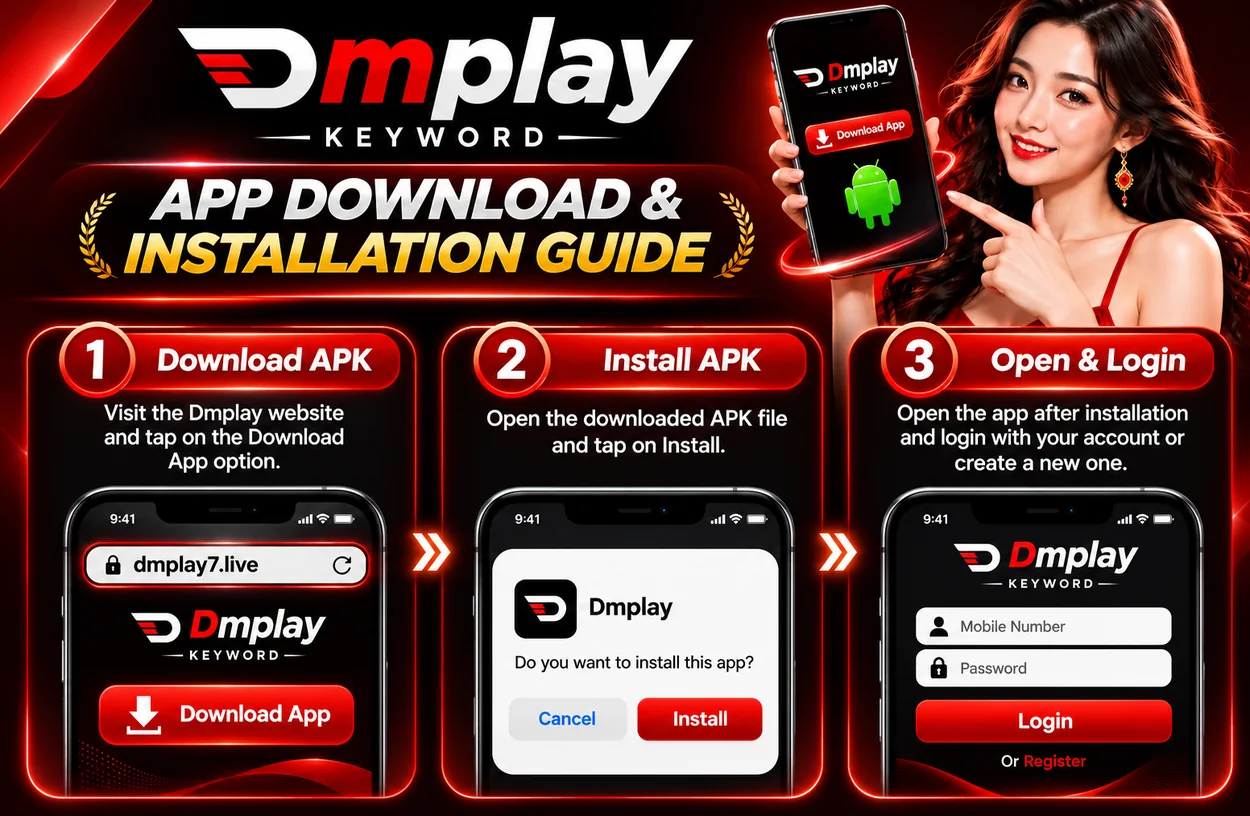
The supplied installation graphic illustrates three stages: opening a website download option, installing an APK file and then opening the app to sign in or register. App availability, supported devices and installation steps can change. Use these checks before installing any application.
For more general DmPlay App and DmPlay Game information, visit the main DmPlay guide on the Home Page.
Verify the Download Source First
Before downloading an app, verify the exact domain through a trusted provider-controlled channel. Do not assume that a search advertisement, social post, forwarded file or copied logo is genuine. The website hosting this article is an independent guide and is not presenting itself as the platform operator.
Check the full web address, spelling, connection security and any publisher information shown by the provider. If you cannot establish that the file comes from a source you trust, do not install it.
Understand the Download and Install Stages
The reference graphic shows a Download App option followed by an Android installation prompt. The names and screens on your device may differ by Android version, browser and app build.
If a file is downloaded, check that you intentionally requested it and that the file name and source match the provider's instructions. Read the device prompt carefully. Do not approve installation if the source is unclear or the app requests permissions that do not make sense for its stated function.
Review Permissions and Device Security
Review the permissions requested by the application. Be cautious if an entertainment app asks for access that appears unrelated to its features, such as unnecessary contacts, SMS, accessibility or device-administration access.
Keep your operating system and security protections up to date. Do not disable built-in security checks just to install an unknown file. If your device warns that an app may be unsafe, stop and verify the file with the provider before proceeding.
Check Compatibility and Updates
Confirm the minimum operating-system version, storage needs and device compatibility from the provider's current documentation. Do not rely on an old screenshot for current requirements. Keep enough free storage for installation and updates.
For updates, return to a source you have independently verified. Avoid update links sent through unsolicited messages or pop-ups. Remove files you no longer need, especially duplicate APK downloads from unknown websites.
If the App Does Not Install
Check whether the download completed, whether the device has enough storage and whether the operating system supports the current app. Read the exact error message instead of repeatedly downloading different copies.
Do not install modified, unofficial or repackaged versions to bypass an error. If the app is unavailable for your device or location, use the provider's verified information to understand the available alternatives.
Protect Your Information After Installation
Only enter credentials after verifying the app and the sign-in page. Keep passwords and one-time verification codes private. Do not grant remote access to someone who claims they need it to complete installation or activate an account.
If an app asks for an unexpected payment, requests banking credentials outside a normal verified payment flow, or promises guaranteed returns, stop and independently check the request.
Frequently Asked Questions
Does this guide provide an APK file?
No. It explains the installation illustration and safety checks; it does not distribute an application.
Should I disable phone security to install an APK?
Do not disable built-in protections just to install an unknown file. Verify the source and heed device warnings.
Are the installation screens guaranteed to match my phone?
No. Screens and requirements can vary by device, Android version and app update.